From dictation to a finished case paper in ten steps
MedicVoice handles the typing. You stay in charge of what the note says.
- 1
Register and choose your specialty
Create your doctor account and pick one of the 12 specialties. The specialty sets your note template and stays locked after registration.
- 2
Set up your clinic
Add your doctor name, clinic details, medical registration number and logo in Settings so printed case papers carry your branding.
- 3
Add or select a patient
Start a New Case and pick an existing patient, or add a new one with name, age, sex and an optional phone number.
- 4
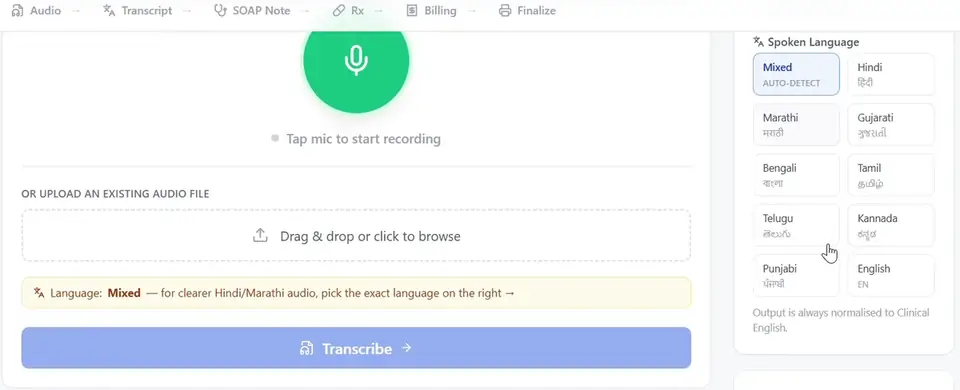
Record or upload the consultation
Tap the microphone and dictate, or upload an existing audio file. Choose the spoken language or leave it on Mixed to auto-detect.
- 5
Review the transcription
MedicVoice shows the original transcript as spoken next to an editable medical English version. Check the English against what was said.
- 6
Generate and edit the clinical note
Generate the structured note, then correct details or add points in any section. Every section stays editable.
- 7
Add prescriptions, packages and attachments
Add medicines in the Rx step or apply a saved Rx package, add billing rows, and attach CT, MRI, X-ray images or previous prescriptions.
- 8
Save and finalise
Save a draft as you work. Finalise when the case is complete to lock all fields; you can reopen it later if needed.
- 9
Print or share
Print the case paper, save it as a PDF, copy the note text, or share it on WhatsApp.
- 10
Manage appointments and reminders
If you connect WhatsApp Business, patients can receive a welcome message, appointment confirmations and a morning-of reminder.
Use MedicVoice where you work
Use MedicVoice on the Web
Open the app in your browser on a clinic computer or laptop.
Open the web appGet it on Google Play
Install MedicVoice on your Android phone or tablet.
Get it on Google PlayiOS: Coming soon
An iOS app is not available yet. You can use the web app in Safari meanwhile.
Coming soon